Time & Date
Set your timezone — the system time auto-syncs via NTP. When the device clock deviates significantly from the current time, a calibration prompt appears after connecting.
Where: Settings → System → Time
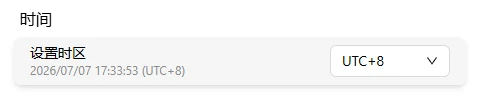
Set Timezone
Use the dropdown to select your timezone. Supports all whole-hour timezones from UTC-12 to UTC+14. Default: UTC+8 (Beijing time). Takes effect immediately.
The current device time is displayed below, refreshing every second:
2026/07/01 14:30:00 (UTC+8)
Calibrate Device Time
The device RTC can drift or lose time after power loss or prolonged offline use, which breaks 2FA verification. When the device clock deviates over 60 seconds from the current time, a calibration prompt shows the device's current time after connecting:
- Confirm: sets the device time to the current time and refreshes the login credential automatically — no need to log in again
- Cancel: dismisses the prompt for this connection
Deviations under 60 seconds show no prompt, and this page has no manual time entry. Such small drift is corrected by NTP: first check the time zone (a wrong zone shifts time by hours, not tens of seconds), then keep the device online and let it sync. If 2FA codes keep failing, verify the time zone before retrying the login.
NTP Time Sources
The system auto-syncs time with the built-in NTP server by default. Custom time sources can be added on the Time & Date page:
- Enter a hostname or IP, e.g.
ntp.aliyun.com - Up to 5 sources; duplicates are flagged
- Mark a source as Preferred to prioritize it
- Changes take effect immediately