Login
FlexKVM uses HTTPS to protect login. On first access, create an admin account. After that, log in with your username and password.
First Login (Create Account)
Access the Device
Enter https://<device-IP> in your browser (the IP shown on the OLED, e.g., https://192.168.1.100). The self-signed certificate will trigger a "Not Secure" browser warning — this is normal. Bypass it as follows:
| Browser | Steps |
|---|---|
| Chrome | Click "Advanced" → "Proceed to (unsafe)" |
| Edge | Click "Advanced" → "Continue to this site (unsafe)" |
| Firefox | Click "Advanced" → "Accept the Risk and Continue" |
| Safari | Click "Show Details" → "Visit This Website" |
Create Admin Account
On first access, the account creation screen is shown:
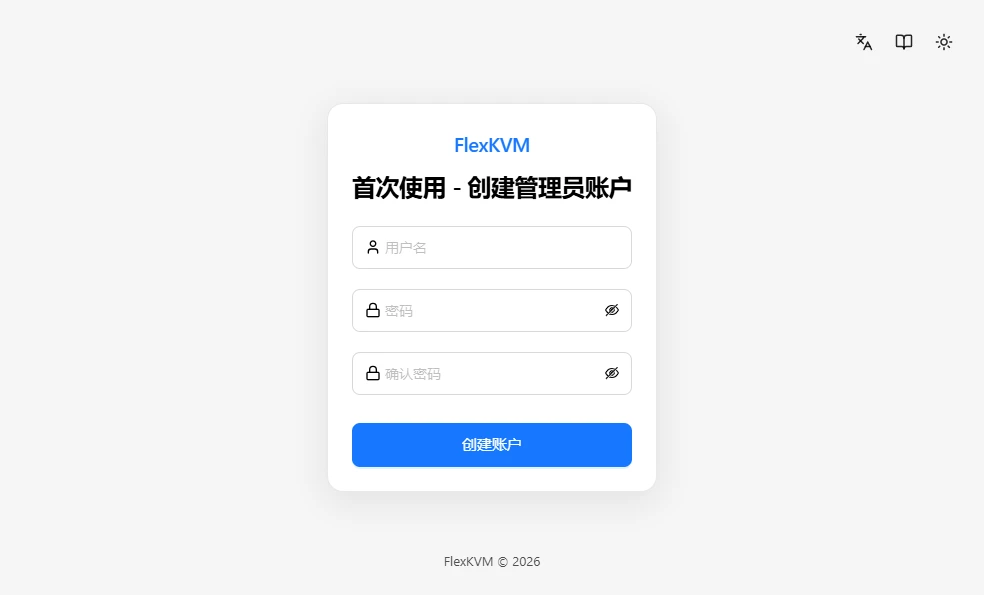
| Field | Requirements |
|---|---|
| Username | 4–32 chars, letters/numbers/underscores/dots/hyphens |
| Password | 8–32 chars, printable characters (no spaces) |
Fill in and click "Create Account" → auto-login to the main interface.
⚠️ Account info is stored locally on the device. If you forget your password, it cannot be recovered — you must factory reset and create a new account.
Login to Existing Account
If an account has already been created, the login screen is shown:
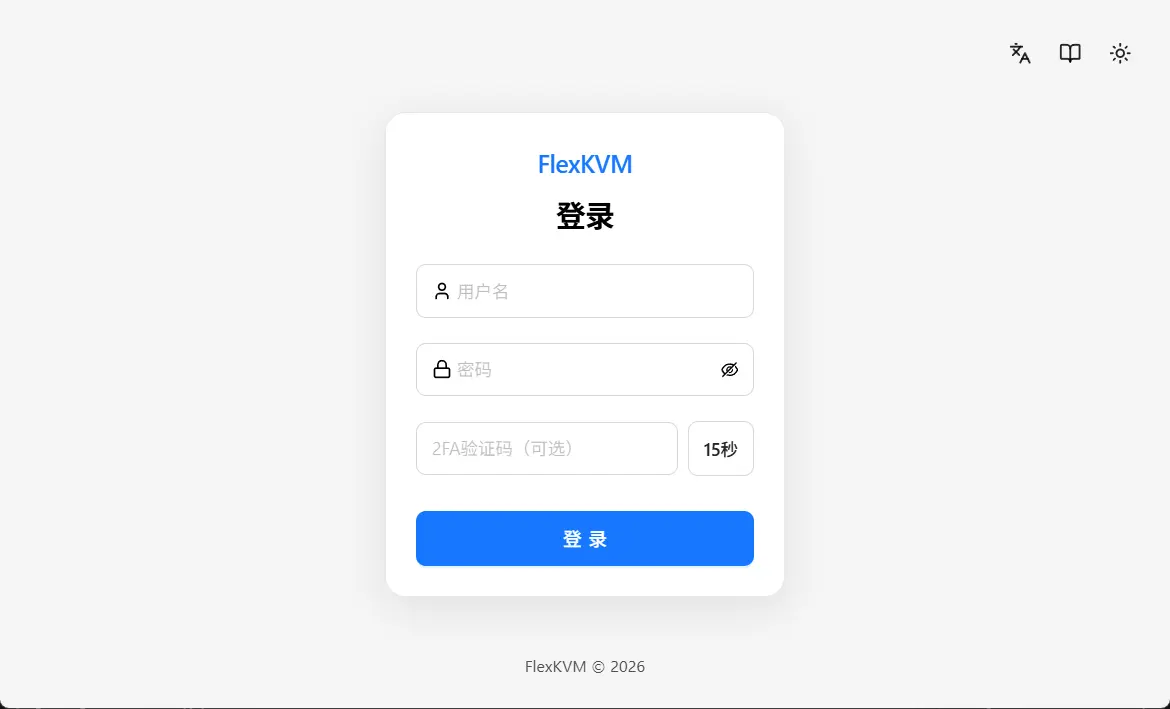
Enter your username and password → click Login.
2FA Enabled?
You'll need to enter a 6-digit verification code. Open your authenticator app → find the FlexKVM entry → enter the code. Codes refresh every 30 seconds — if it expires, wait for the next one.
When the device clock deviates significantly from the current time (e.g. RTC drift after power loss), a calibration prompt appears after login — follow it to calibrate the device time and the code will pass.
Login Failed
| Issue | What to do |
|---|---|
| Wrong username or password | Check case, check for extra spaces |
| Wrong 2FA code | Verify time sync, wait for a new code |
| Account locked | Temporarily locked after repeated failures — wait a few minutes and retry |
Multi-Device Login & Preemption
Only one user can be online at a time. When another user is already online, a new login attempt shows:
| Scenario | Prompt & behavior |
|---|---|
| Another user online, trying to log in | Dialog: "User {{username}} is currently logged in. Do you want to log in?" — click Confirm to take over (the online user is kicked); click Cancel to return to the login page; auto-cancels after 30 seconds without action |
| Kicked out by another user | Dialog: "You have been kicked out, please log in again" (includes the kicker's username) — re-login required |
| Same account refreshed in another tab | Current tab pauses reconnection and auto-resumes when you return to it |
Logout
Click your username in the top-right corner → "Logout". The server revokes all credentials for this account (other logged-in sessions become invalid immediately); old credentials cannot be reused. Logging out doesn't close the remote display, but any further interaction requires re-login.