Remote Display
View the target host's screen, adjust resolution, quality, and EDID. The display is captured via HDMI at the hardware level — BIOS, blue screens, and safe mode are all visible, independent of the operating system.
Display Status
The display icon in the top bar reflects current state:
| Icon | Meaning |
|---|---|
 | Normal display |
 | Host sleeping / signal lost |
 | Not connected |
Remote Display
The remote display appears below the menu bar. The view auto-scales with the window — black bars appear on the sides or top/bottom when the aspect ratio doesn't match. Mouse operations don't work in the black bar areas.
Status messages when the display is abnormal:
| Message | Cause |
|---|---|
| "Remote display not connected" | HDMI not plugged in or target host powered off |
| "Host is sleeping" | Host in sleep mode or HDMI signal interrupted |
Touchscreen Gestures
On touch devices, the following gestures are supported on the video area — all mapped to remote mouse operations (default browser gestures like pinch-zoom and scroll are disabled on the video area):
| Gesture | Action |
|---|---|
| Single-finger tap | Left mouse click |
| Single-finger double tap (two taps within 400 ms) | Mouse double-click |
| Single-finger hold still (~1.2 s) | Right mouse click |
| Single-finger press and hold (~0.5 s), then move | Left button pressed and move (drag) |
| Two-finger vertical swipe | Scroll wheel (speed follows the mouse scroll setting) |
Moving immediately after pressing is treated as cursor movement (browsing) — it does not trigger drag or right-click.
Display Menu
Click the display icon in the top bar to open the menu.
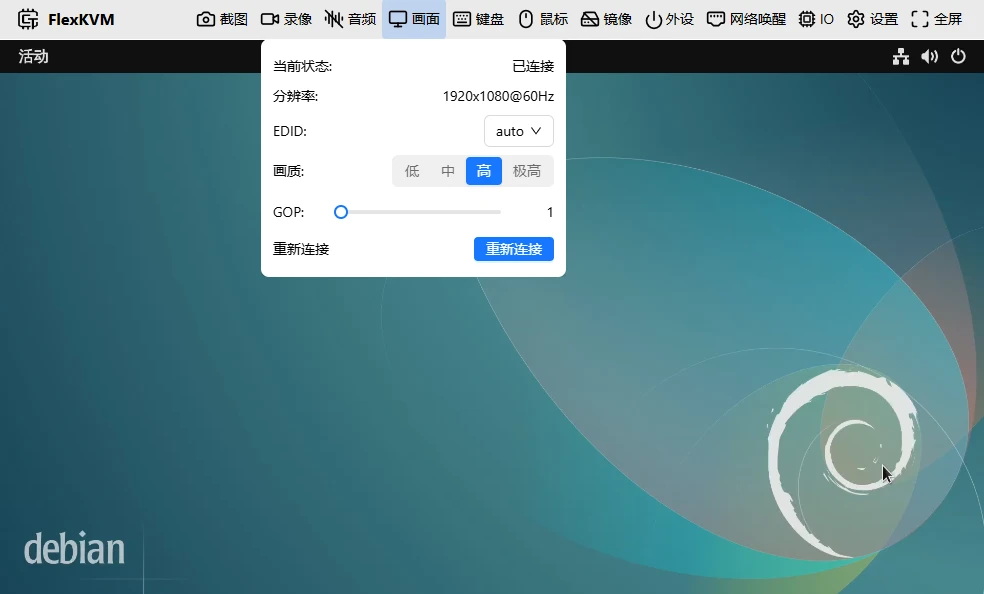
Status & Resolution
| Status | Meaning |
|---|---|
| Connected | Normal |
| Signal lost | Host sleeping or HDMI disconnected |
| Not connected | Connection never established |
Resolution format: widthxheight@refreshHz (e.g., 1920x1080@60Hz). 0x0@0Hz means resolution is currently unavailable.
EDID
EDID tells the target host "what kind of display I am" — what resolutions and refresh rates are supported. The dropdown lists all available configurations:
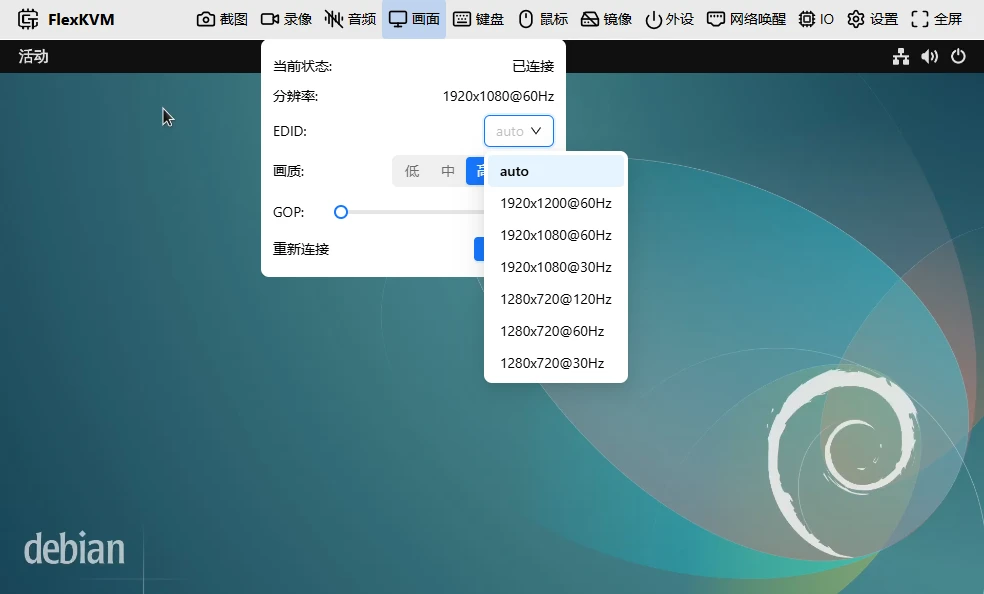
auto (multi-resolution, default): Tells the host "I support multiple resolutions" — best flexibility, up to 1920x1200@60Hz.
Fixed resolution: Locks to a single resolution:
| EDID | Resolution |
|---|---|
| 1920x1200@60Hz | 1920×1200 |
| 1920x1080@60Hz | 1920×1080 |
| 1920x1080@30Hz | 1920×1080 |
| 1280x720@120Hz | 1280×720 |
| 1280x720@60Hz | 1280×720 |
| 1280x720@30Hz | 1280×720 |
When to use fixed resolution? When the host picks an undesirable resolution in auto mode, or when you need to force a specific resolution.
Custom EDID: After uploading a custom EDID, a custom option appears in the list. Switching EDID automatically reconnects the video stream.
Quality
Four levels — higher is sharper, but consumes more bandwidth:
| Quality | When to use | Est. bandwidth |
|---|---|---|
| Low | Slow network | ~256 Kbps |
| Medium | Daily operations | ~2 Mbps |
| High | Need to see fine details | ~4 Mbps |
| Ultra | Best quality | ~8 Mbps |
Bandwidth is approximate and varies with screen content. If it's laggy, lower the quality.
GOP
Controls the balance between display responsiveness and bandwidth. Range: 1–10.
| Setting | Effect |
|---|---|
| Lower (1–3) | Fast response, higher bandwidth |
| Higher (7–10) | Lower bandwidth, slower response, slower recovery from frame loss |
Not sure? Keep the default of 1.
Reconnect
Disconnect the current video connection and re-establish it. Try this when the display is laggy or glitching.
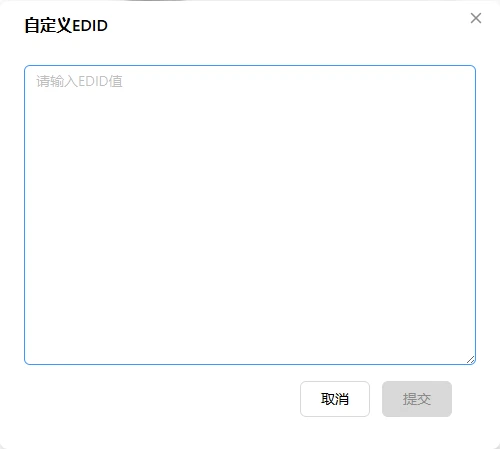
Custom EDID
Go to Settings → System → EDID Configuration.

Click "Custom EDID" and enter EDID data in HEX format:
| Rule | Description |
|---|---|
| Encoding | Hexadecimal (HEX), two characters per byte |
| Size | Integer multiples of 128 bytes (1–6 blocks) |
| Max | 768 bytes |
| Header | Must start with 00 FF FF FF FF FF FF 00 |
| Checksum | Each 128-byte block checksum must be 0 |
Format example (first 16 bytes; 128 bytes total needed):
00 FF FF FF FF FF FF 00 0E 94 66 66 88 88 88 88
(Do not use directly — paste your full EDID data)
Getting EDID: Linux:
cat /sys/class/drm/card0-HDMI-A-1/edid | xxd -p. Windows: use tools like MonitorInfoView. Or obtain from your display manufacturer.
Fullscreen
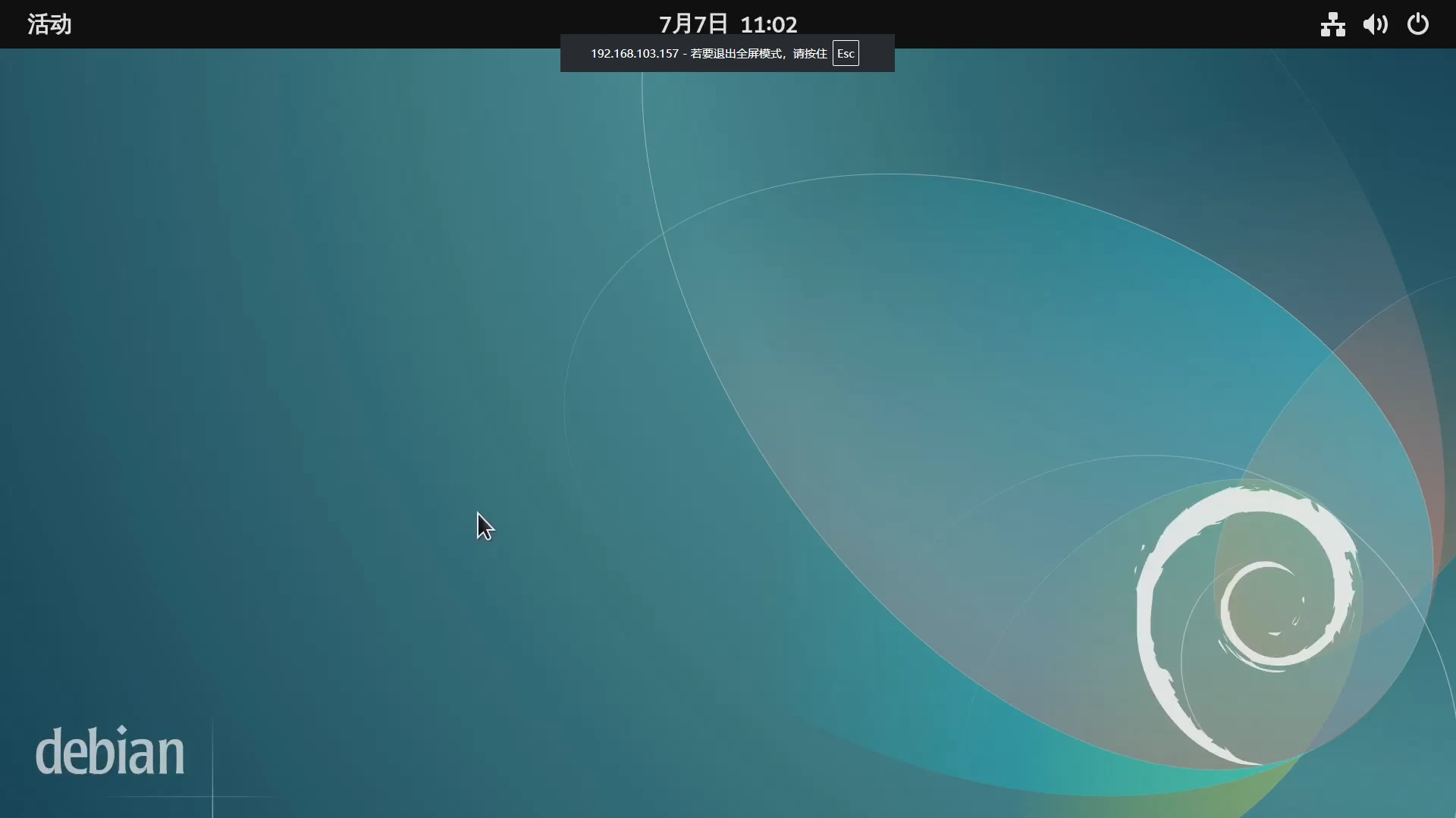
Click the fullscreen button at the far right of the top bar, or press F11. Press Esc or F11 again to exit.
FAQ
Display laggy or high latency? → Lower the quality, or click Reconnect.
Display shows "Signal Lost"? → Check if the host is sleeping or the HDMI cable is loose.
Wrong resolution? → Switch EDID, or manually adjust resolution on the host.