Text Recognition (OCR)
No more copying text off the remote display by eye — drag a box over an area and FlexKVM recognizes the text locally on the device, ready to copy. Typical uses: an error code on a blue screen, the model and serial number in BIOS, a message that stalled an OS install, or a chunk of log lines in a terminal.
Where: OCR in the menu bar
Recognition runs on the device. Neither the picture nor the recognized text leaves it, and no online service is involved.
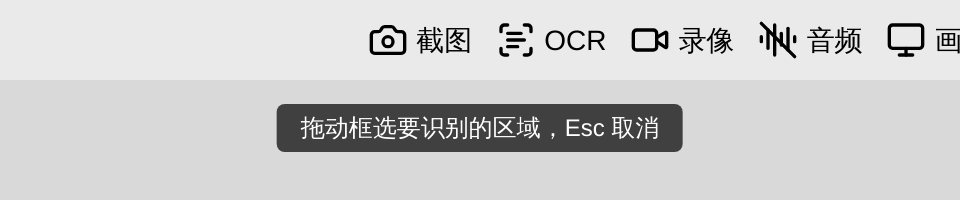
Run a recognition
- Click OCR in the menu bar — the display dims and a "Drag to select an area, Esc to cancel" hint appears
- Press and drag a rectangle over the display, then release to start recognizing
- A spinner reads Recognizing…; when it finishes, the results dialog lists the text line by line
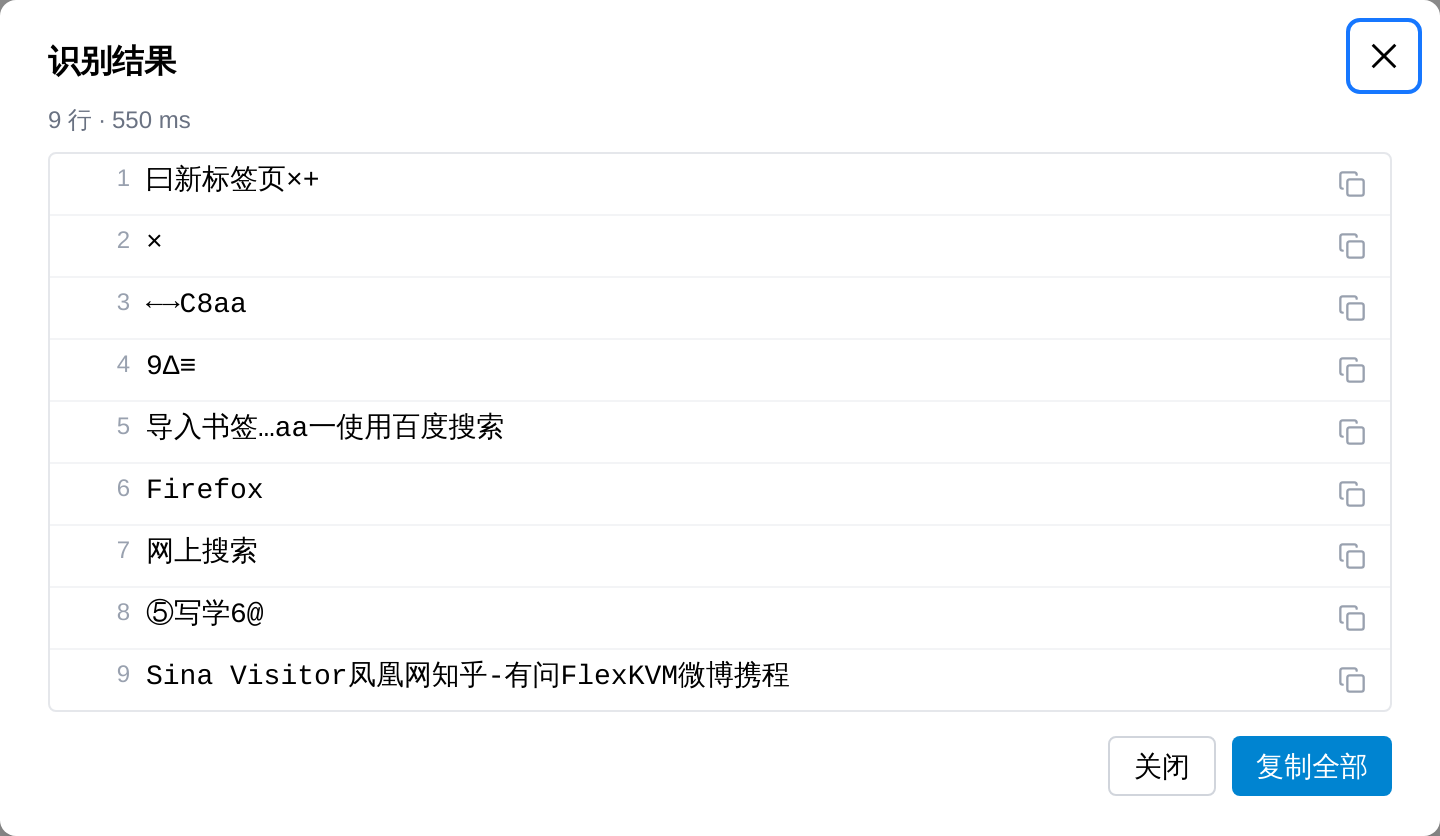
| Want to | How |
|---|---|
| Copy one line | Click the copy icon on that row |
| Copy everything | Click Copy all — lines are joined in order |
| Leave selection mode | Press Esc, or click OCR in the menu bar again |
Verify: the dialog subtitle reads "N lines · milliseconds" — how many lines this run produced and how long it took.
What it can read
- Chinese and English, digits and common symbols; mixed layouts are split into lines
- Plain text and light text on dark backgrounds both work; results are ordered top to bottom
- If the selection has no text, the list is empty and a "No text found in the selection" notice appears
Speed
Recognition is synchronous: the UI waits for the device between releasing the selection and getting the result. There is no percentage progress.
| Case | Approximate time |
|---|---|
| A typical selection (one error line, one dialog) | 0.1 – 0.4 s |
| Full 1080p frame | 0.5 – 1.2 s |
One image at a time: selecting another region while a recognition is still running is rejected. Wait for the result and try again.
Permissions and privacy
- Requires login
- Operation records hold only line count and duration — never the recognized text
- Recognition runs on the device; neither the picture nor the text leaves it
FAQ
No OCR in the menu bar? → The entry is hidden when the device does not support it. Flash the latest firmware to restore it.
"Recognition failed"? → Usually happens when the remote display just dropped. Confirm it is back, then select again.
"No text found in the selection"? → The box is too small or covers a flat area. Widen it to include a whole line or paragraph.
Garbled characters? → Very small or blurry text gets confused with similar glyphs. Increase the display scale on the target and select again.