Keyboard
Send text, shortcuts, and key combinations to the target host. FlexKVM emulates a standard USB keyboard, compatible with all operating systems.
Keyboard Status
The keyboard icon in the top bar reflects state:
| Icon | Meaning |
|---|---|
 | Connected |
 | Not connected or disabled |
Keyboard Menu
Click the keyboard icon to open the menu.
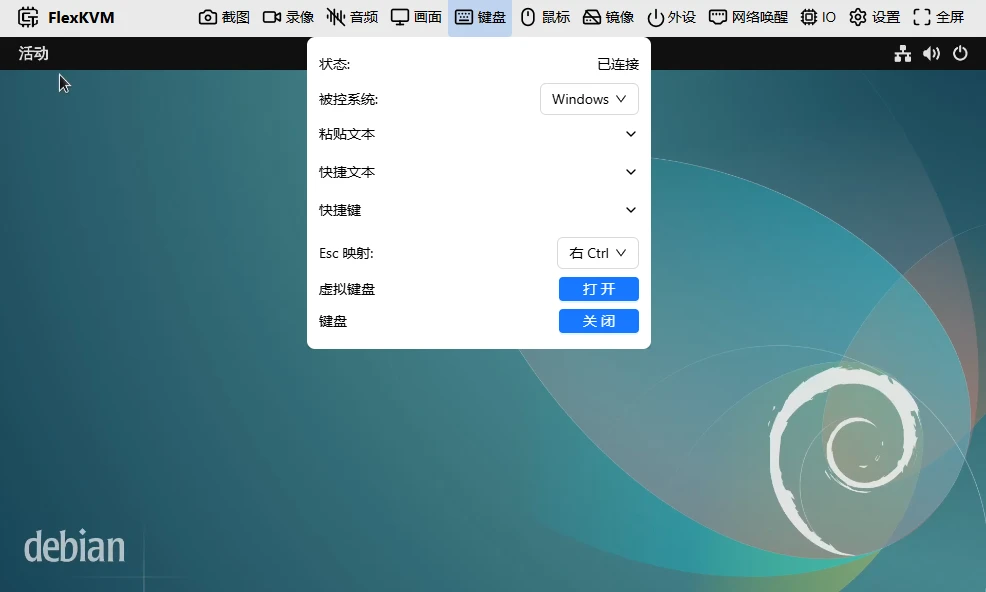
Status
| Status | Description |
|---|---|
| Connected | Normal input |
| Not connected | Connection lost — re-plug USB or refresh the page |
| Disabled | Manually turned off — click Enable to restore |
Target OS
Tell FlexKVM what OS the target host is running — shortcut keys and virtual keyboard layout adjust accordingly. Default: Windows. Also available: Linux, macOS.
Paste Text
Expand to type or paste text, then click send to the target host. You can click cancel while sending is in progress.
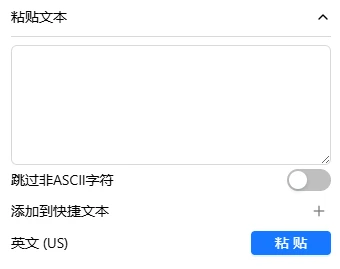
ASCII characters only (letters, numbers, symbols). Chinese characters are not supported. Max 4096 characters. Paste speed is ~20 chars/sec.
- Skip non-ASCII characters: When enabled, auto-filters Chinese and other non-ASCII characters. When disabled, encountering them triggers an error.
- Add to Quick Text: Save the current text for one-click sending later.
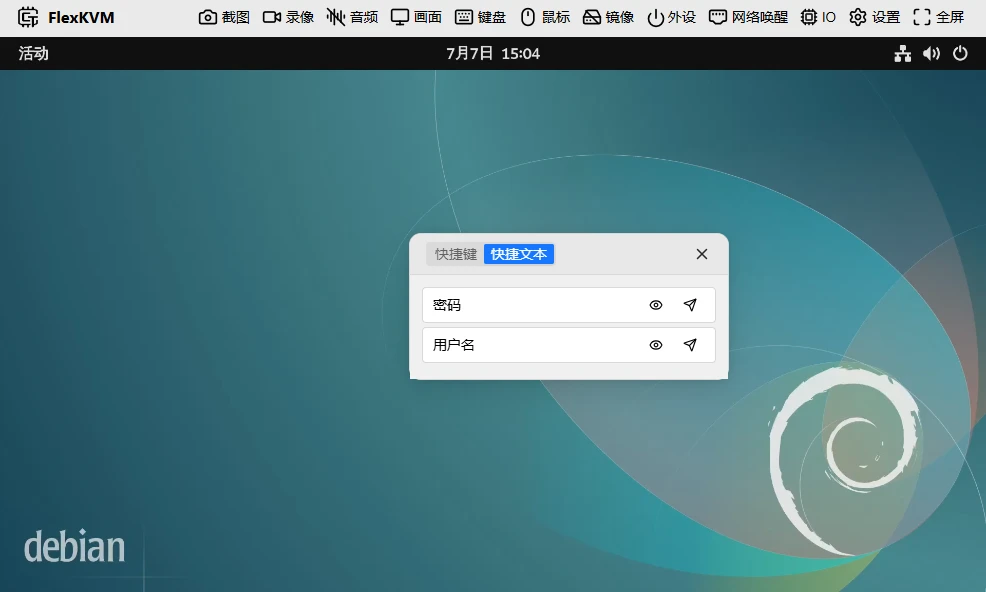
Quick Text
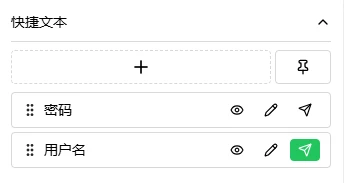
Store frequently used text (passwords, commands, templates) and send with one click.
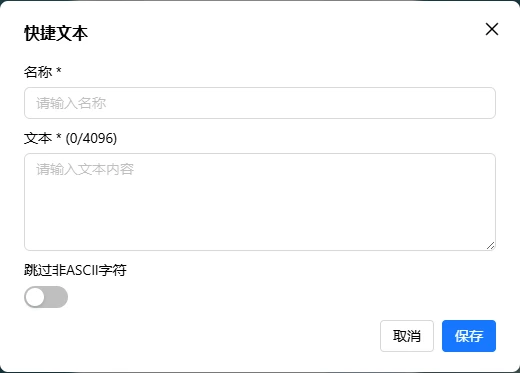
Add: Click + → enter a name (max 32 chars) and content (max 4096 chars). Maximum 10 entries.
Use: Each entry supports preview (eye icon), edit (pencil), send, and cancel. Drag to reorder. Click the pin button to make it a floating window — drag it wherever convenient.
Shortcuts
Common shortcuts sent with one click. Layout auto-adjusts based on the "Target OS" setting.
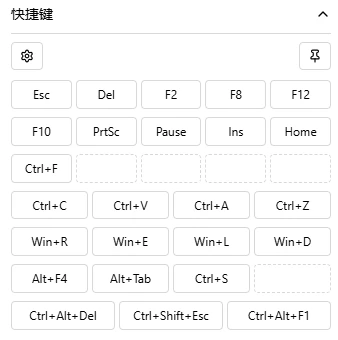
- Gear icon: Customize shortcuts
- Pin icon: Open/close floating window
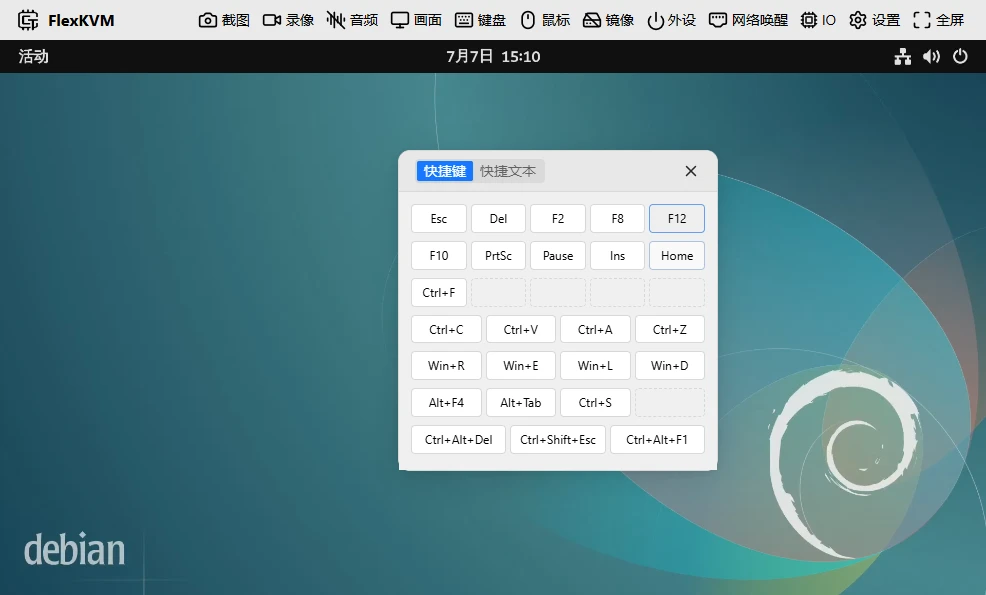
Custom shortcuts: Click gear → dialog has three sections — top: select OS, middle: shortcut list (click + to add), bottom: import/export/reset.
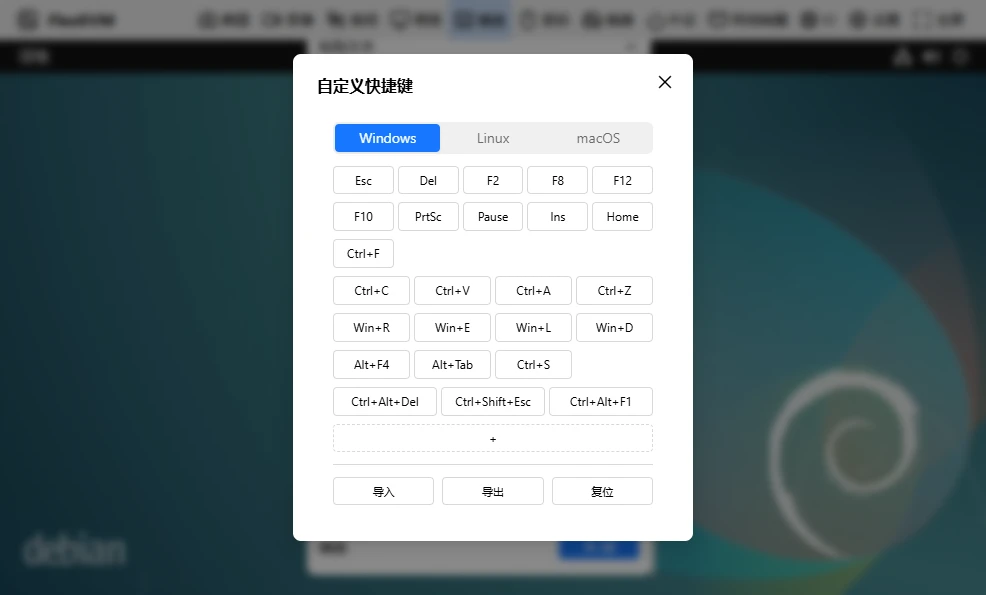
Click a shortcut in the list to modify it:
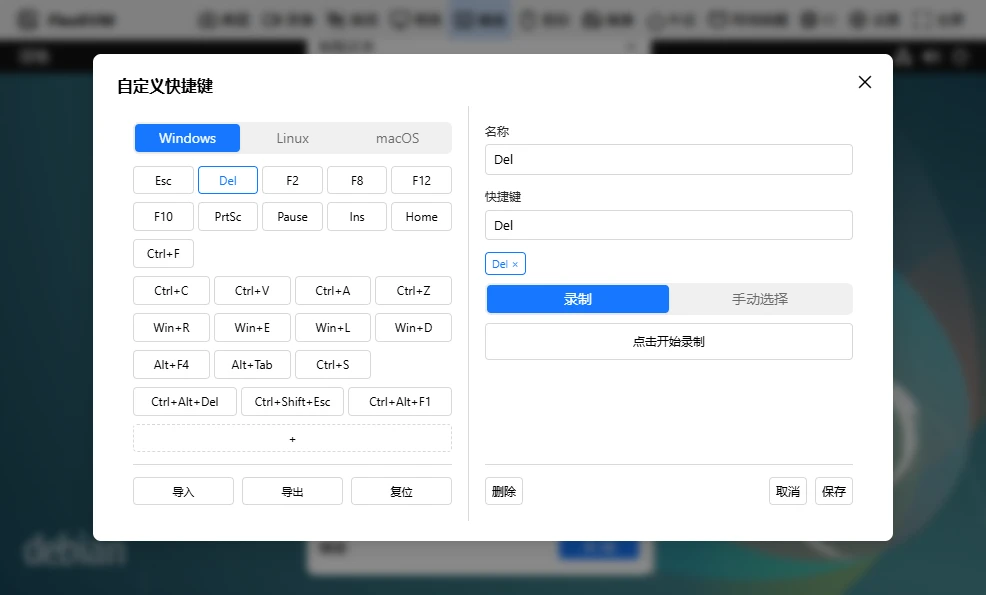
- Name: Max 32 chars; if blank, the shortcut content is displayed
- Shortcut: Two ways to add: Record (click Start Recording, then press keys) or Manual (select keys to add/remove)
Virtual Keyboard
Opens a virtual keyboard overlay on the display — click with your mouse to type. Layout auto-adjusts based on the "Target OS" setting. Compact layout when the window is narrow. Drag the title bar to move.
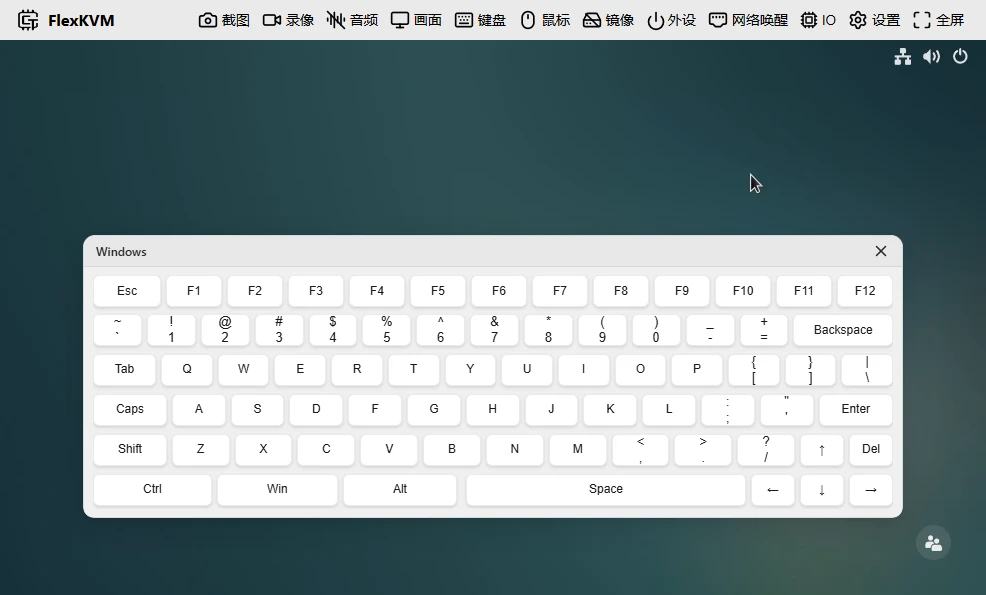
Modifier keys (Ctrl, Alt, Shift, Win) are toggle-style — click once to hold (turns dark), click again to release (turns light). Multiple modifiers can be held simultaneously.
Example: Click Ctrl (dark) → click A → sends Ctrl+A → Ctrl stays held for more combos → click Ctrl again (light, released).
Regular keys: Press to hold, release to let go.
When closing the virtual keyboard or switching pages, all held keys are automatically released — no stuck keys.
Esc Mapping
In fullscreen or relative mouse mode, Esc is captured by the browser. Esc mapping lets you use another key instead:
| Your OS | Mapped to |
|---|---|
| Windows / Linux | Right Ctrl |
| macOS | Right Option |
Options: Right Ctrl, Right Option, Pause, or Disabled.
Disable / Enable
When status is "Connected", click "Disable" → changes to "Disabled". Click "Enable" to restore.
Toggling keyboard causes a brief USB disconnect/reconnect — mouse, disk mount, and audio will also briefly drop and recover.
FAQ
Paste text does nothing? → Check if it contains Chinese characters. Paste text supports ASCII only.
Shortcuts not working? → Verify the "Target OS" setting is correct.