AI Agent Control
Hand the device to an AI client: after enabling Agent and generating an API Key, AI clients such as OpenClaw, Claude Code, Codex, and DSH can control the keyboard/mouse and take screenshots through Skill or MCP — useful for automated inspection, batch configuration, and unattended operation.
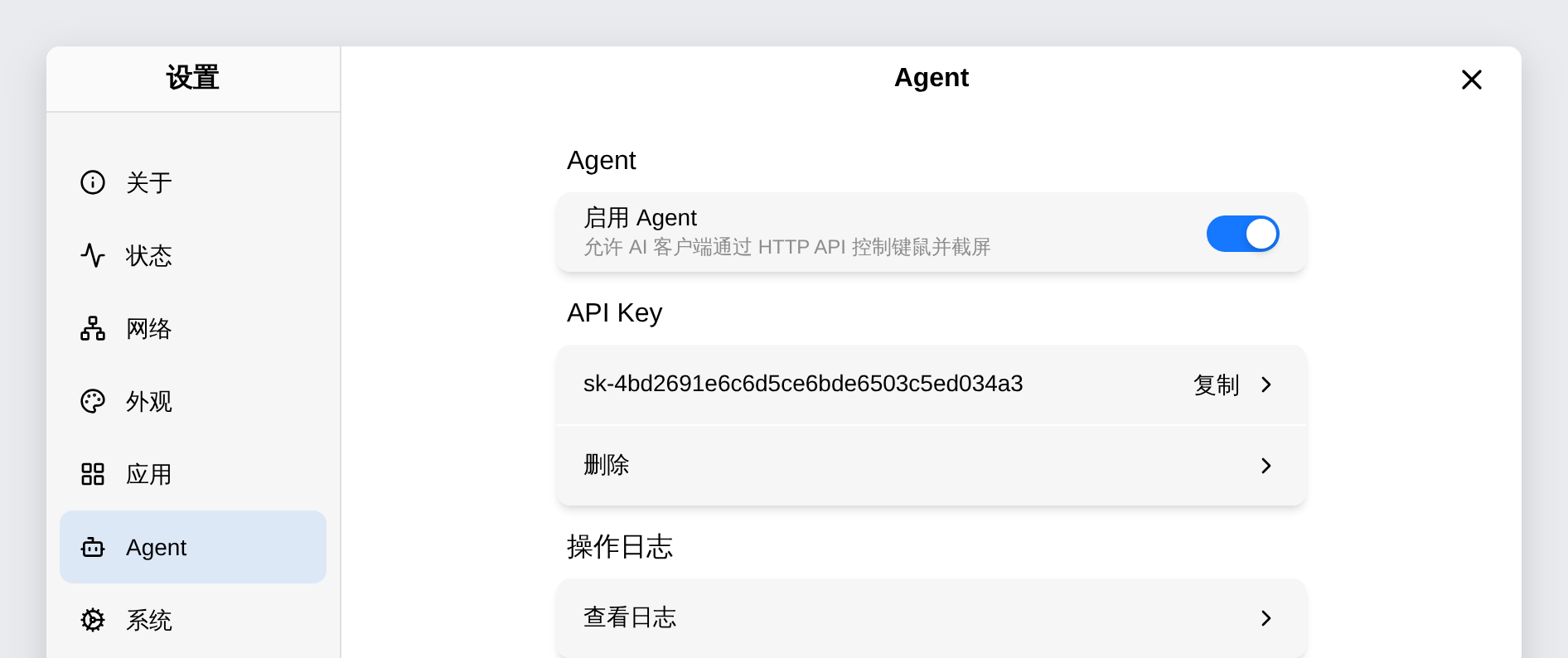
Where: Settings → Agent
Enable Agent
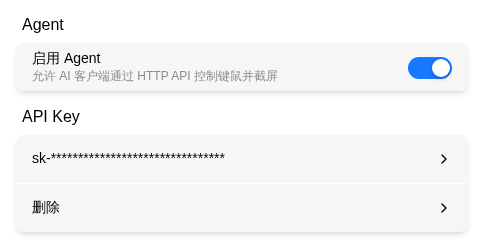
| Action | Description |
|---|---|
| Enable Agent | AI clients can only call the interface when enabled |
| Generate | Create an API Key prefixed with sk- as the credential |
| Copy | Copy the current API Key |
| Delete | Invalidate the current API Key; issued keys stop working immediately |
The API Key carries keyboard/mouse control privileges. Only configure it for trusted AI clients. If it leaks, delete and regenerate it immediately. Skill and MCP use the same API Key.
Operation Log
The operation log records every call an AI client makes through the interface, for confirming that an automation flow ran as intended. Where: Settings → Agent → Operation Log → View log. Only administrators can view and download it.
The dialog header shows the current record count and the maximum number of records displayed at once (200). The list is ordered from oldest to newest.
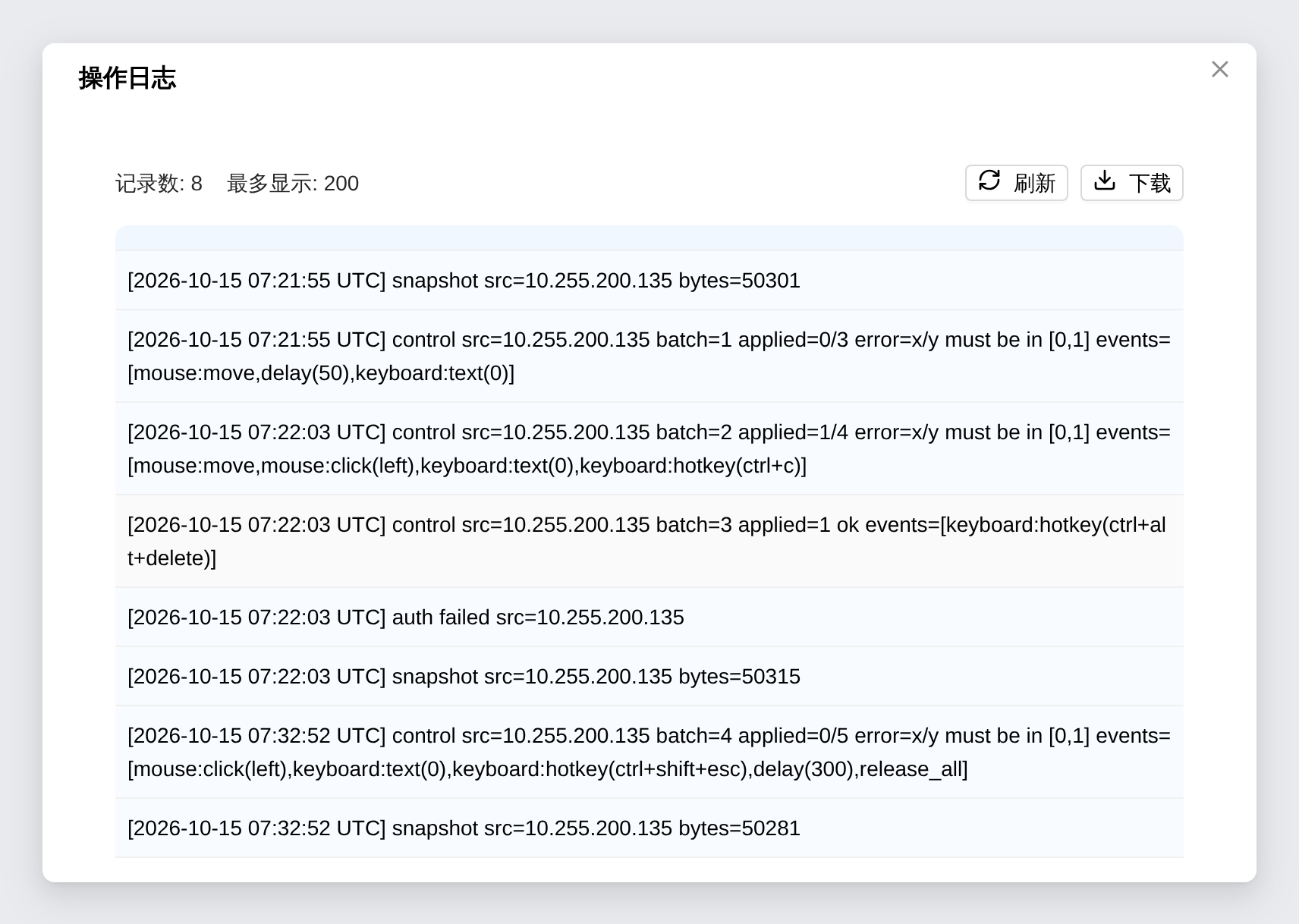
| Action | Description |
|---|---|
| Refresh | Fetch the latest records again |
| Download | Save the complete log file locally as agent-log-<timestamp>.log |
Each record contains a UTC timestamp, the caller's IP address, and the operation type:
| Operation | Recorded content |
|---|---|
snapshot | Screenshot, with the image byte size |
control | Keyboard/mouse event batch, with batch id, applied count, result or rejection reason, and an event summary |
cancel | Batch cancellation, with the requested batch id and the active batch id |
auth failed | API Key verification failure |
The event summary expands each event, such as mouse:click(left), mouse:scroll(-3), keyboard:hotkey(ctrl+alt+delete), keyboard:text(12), delay(300), and release_all. Batches rejected for invalid parameters, exceeded limits, or a busy Agent are recorded too, with the reason in an error field.
keyboard textrecords only the character count (text(12)), never the input itself — text typed on the controlled device is often passwords and tokens.
The log file is capped at 256KB; once exceeded, the oldest records are trimmed. The operation log serves viewing and downloading only — it is stored separately from the audit log and the two do not share a quota. Downloading the log is itself written to the audit log.
Two Ways to Connect
Agent supports Skill and MCP invocation. Both give the AI client the same "screenshot + keyboard/mouse control" ability — pick one, or use both:
| Method | What it is | Suitable clients |
|---|---|---|
| Skill (recommended) | A folder of "instructions": drop it into the client's skills directory and the AI knows how to call the device | OpenClaw, Claude Code, Codex, and other clients supporting Agent Skills |
| MCP | The device's built-in standard tool interface: register the URL and key once in the client, and tools like screenshot and click appear automatically | Claude Code, Codex, DSH, and other MCP-capable clients |
- Skill: the repository ships execution rules, event references, examples, and troubleshooting — the AI "reads the manual" and operates.
- MCP: the industry-standard protocol (Model Context Protocol), ideal for environments already managing tools via MCP.
Method 1: Skill (flexkvm-skill)
Official skill repository: https://github.com/chutuotek/flexkvm-skill
1. Install the Skill
Clone the repository into the client's skills directory (the directory name should stay flexkvm-skill):
git clone https://github.com/chutuotek/flexkvm-skill.git \
  ~/.openclaw/workspace/skills/flexkvm-skill
git clone https://github.com/chutuotek/flexkvm-skill.git \
  ~/.claude/skills/flexkvm-skill
git clone https://github.com/chutuotek/flexkvm-skill.git \
  ~/.codex/skills/flexkvm-skill
2. Set Environment Variables
The skill reads the device address and credentials from environment variables — both are required:
| Variable | Description |
|---|---|
FlexKVM_IP | Device IP address |
FlexKVM_TOKEN | API Key generated under Settings → Agent |
# Bash
export FlexKVM_IP="192.168.x.x"
export FlexKVM_TOKEN="sk-xxxxxxxxxxxxxxxxxxxxxxxxxxxxxxxx"
# PowerShell (persisted as user-level variables)
[System.Environment]::SetEnvironmentVariable("FlexKVM_IP", "192.168.x.x", "User")
[System.Environment]::SetEnvironmentVariable("FlexKVM_TOKEN", "sk-xxxx...", "User")
Restart the client or reopen the terminal after changing environment variables.
3. Use It
Just talk to the AI in plain language:
Show me the target host's screen
Open Notepad, type hello, and save it to the desktop
Install setup.exe from the desktop, confirm each step with a screenshot
The skill includes screenshot, click/drag/scroll, text input, hotkeys, plus best practices (screenshot before acting, synchronous long-text input, release_all as the safety reset). See SKILL.md and README.md in the repository for details.
Method 2: MCP Endpoint
The device ships a built-in MCP server that turns screenshot and keyboard/mouse control into standard "tools". Only three things are needed: the URL, the key, and the transport type:
| Item | Value |
|---|---|
| Type | Streamable HTTP (MCP's standard network transport) |
| URL | https://<device address>/api/v1/mcp |
| Auth | Authorization: Bearer <API Key> |
Available tools: state, screenshot, type_text, press_key, mouse_move / mouse_click / mouse_scroll / mouse_drag, mouse_down / mouse_up / key_down / key_up / release_all (hold-type), and control (event batch). Fetch the tool list dynamically via tools/list.
claude mcp add --transport http flexkvm \
  https://<device address>/api/v1/mcp \
  --header "Authorization: Bearer <API Key>"
Add --scope user to make it available in all projects. Verify with claude mcp list.
Edit ~/.codex/config.toml (requires Codex CLI ≥ 0.44 with Streamable HTTP support):
[mcp_servers.flexkvm]
url = "https://<device address>/api/v1/mcp"
bearer_token_env_var = "FlexKVM_TOKEN"
And set the environment variable:
export FlexKVM_TOKEN="sk-xxxxxxxxxxxxxxxxxxxxxxxxxxxxxxxx"
Add a dsh-mcp-client plugin instance to the profile's cordis.patch.yml (or a file passed via --patch):
- id: mcp-flexkvm
  name: '@deepseek-ai/dsh-mcp-client'
  config:
    serverName: flexkvm
    transport: streamable-http
    url: https://<device address>/api/v1/mcp
    headers:
      Authorization: !!js '`Bearer ${process.env.FlexKVM_TOKEN}`'
Tools are exposed to the agent as mcp__flexkvm__<tool name>.
Any MCP client supporting Streamable HTTP transport with custom headers can connect — fill in the URL and auth header from the table above. Prefer environment variables over plaintext secrets in config files.
claude mcp list shows flexkvm as connected:
$ claude mcp list
Checking MCP server health…

flexkvm: https://<device-address>/api/v1/mcp (HTTP) - ✔ Connected
HTTPS Certificate Note
The device uses a self-signed HTTPS certificate by default. If the client reports a TLS / self-signed certificate error, import the device CA certificate into the client machine's trust store (Settings → Security → HTTPS → Download CA Certificate) — see HTTPS Certificate. For quick debugging, curl -k skips verification (already built into the flexkvm-skill scripts).
Working Alongside Users
| Agent | User online | Behavior |
|---|---|---|
| Off | Any | AI cannot control |
| On | No | AI actions take effect immediately |
| On | Yes | AI and the user share the same keyboard/mouse |
- AI and an online user share the same HID device — simultaneous input interferes, so stagger usage.
- Once Agent is enabled,
screenshotworks regardless of whether a user is online. - In provisioning mode the MCP endpoint is hidden (requests return 404); the REST endpoints (
/api/v1/agent/*) still follow the Agent switch and API Key authentication.
Limits
The interface enforces fixed limits; exceeding them fails or truncates the request. Check these when planning an event batch:
| Item | Limit |
|---|---|
Events per control call | 32 |
Total duration per control call | 60 seconds (then it times out) |
type_text length per call | 512 characters |
delay per call | 5000 ms |
mouse_drag duration per call | 5000 ms |
mouse_scroll dy per call | ±127 |
Ordinary keys per press_key hotkey | 6 (HID report limit) |
- Only one
controlbatch runs at a time; a new request while busy returns 503. A batch can be cancelled mid-run. Over MCP a busy Agent is not reported as an internal error: the result carriesisErrorwithstructuredContent.busy = true, so treat it as retryable. - A cancellation can target a batch by id:
batch_idin the REST body, or the non-standardparams.batch_idover MCP. Without it the active batch is cancelled. Targeting keeps a late request from killing the next batch that just started. statereports the input signal resolution, which stays valid while nobody is watching the stream (modeisidle); it is-1only when there is no signal. Coordinate mapping needs no video session first.stateis assembled from several reads, not an atomic snapshot, so it can be slightly inconsistent in rare cases.
FAQ
Getting 401? → The API Key is missing or wrong. Deleted the key? Generate a new one and update the client.
Getting 403? → Two possible meanings: ① Agent is disabled — turn it on under Settings → Agent; ② you reached the MCP endpoint over plain http:// — MCP requires HTTPS (sending a long-lived Bearer key in plaintext is unsafe), so use https://.
Getting 429? → Too many failed auth attempts triggered a short rate limit. Wait about a minute and retry, and check that the key is correct.
The AI says it has no such skill after installing? → Make sure the repository is in the client's skills directory with SKILL.md inside, then restart the client; on OpenClaw check with openclaw skills list.
MCP tools don't show up? → Check status with claude mcp list; on DSH verify the patch file loads, that serverName hasn't been renamed, and that the FlexKVM_TOKEN environment variable is set (the config references it but won't create it); if both fail, see the next TLS item.
TLS / certificate errors? → The device uses a self-signed certificate — import the device CA into the system trust store (see "HTTPS Certificate Note" above).
AI actions do nothing? → First check the Limits section above; confirm the target host's keyboard/mouse works (e.g., typing is visible in the BIOS screen).
Getting 404 from the MCP endpoint in provisioning mode? → In provisioning mode the MCP endpoint is hidden — this is expected; the REST endpoints are unaffected.