Wake-on-LAN (WoL)
Wake-on-LAN supports only Ethernet. FlexKVM and the target device must be on the same LAN.
Prerequisites
The target device must:
- Have a motherboard and BIOS that support and have Wake-on-LAN enabled
- Be connected via Ethernet cable (WiFi not supported)
- Be in shutdown, sleep, or hibernation state (not fully unpowered)
- The target host must be on the same subnet as FlexKVM.
Enable WoL in BIOS
Enter the target host's BIOS (press Del / F2 during boot) and find these options under Power Management:
| BIOS option | Set to |
|---|---|
| Wake on LAN / WOL | Enabled |
| PCIe Wake / Power On By PCI-E | Enabled |
| ErP / EuP Ready | Disabled (must be off) |
BIOS layouts vary widely between motherboards. If you can't find these options, check the motherboard manual or contact the manufacturer.
WoL Entry
In FlexKVM's top bar, click the network port icon:
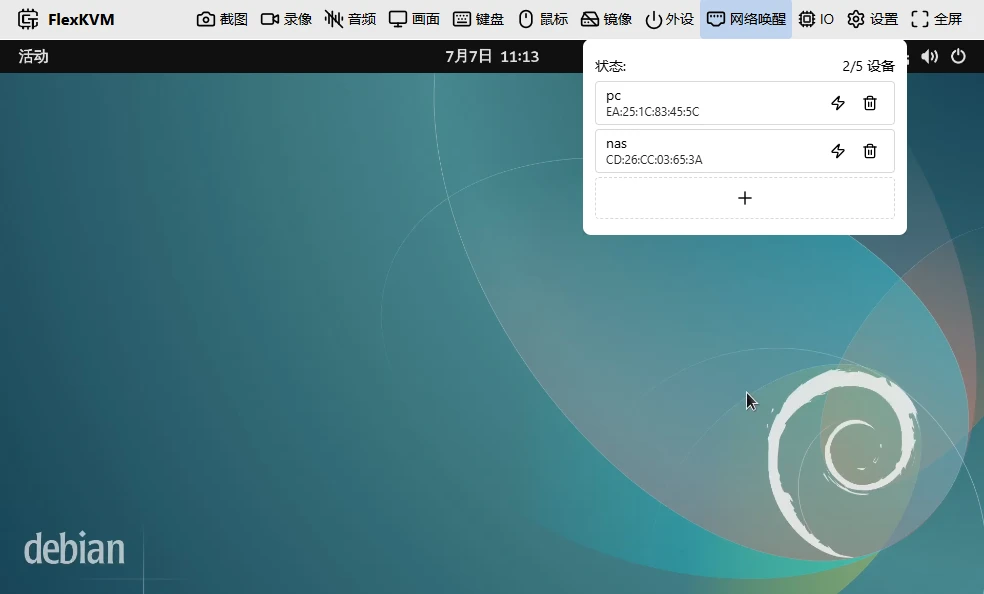
Add a Device
- Click the + button
- Enter a device name (ASCII and numbers only, max 32 chars, must be unique)
- Enter the MAC address (format:
AA:BB:CC:DD:EE:FF) - Confirm
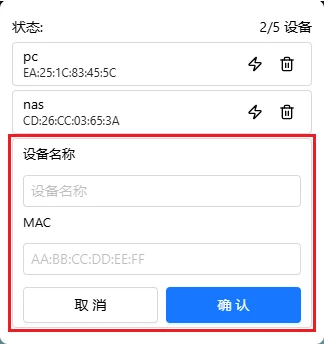
Maximum 5 devices.
How to find the MAC address:
| OS | Command |
|---|---|
| Windows | ipconfig /all, look for "Physical Address" |
| Linux | ip addr or ifconfig |
| macOS | ifconfig |
Wake a Device
Click the lightning icon in the device list → Magic Packet sent → device wakes up.
Verification: A toast notification confirms wake success. No response? → Verify that the device is on Ethernet (not WiFi), WoL is enabled in BIOS, the MAC address is correct, and it's on the same LAN as FlexKVM.
Remove a Device
Click the trash icon to remove it from the list.
FAQ
Clicked wake but nothing happens?
→ Three things to check: ① Is the device on Ethernet? ② Is WoL enabled in BIOS? ③ Is the MAC address correct?
Can I wake across networks?
→ No. FlexKVM and the target device must be on the same LAN.