Offline Upgrade
You can upgrade firmware even without internet access — download the firmware package on a computer, put it on a TF card, insert it into the device, and upload for upgrade.
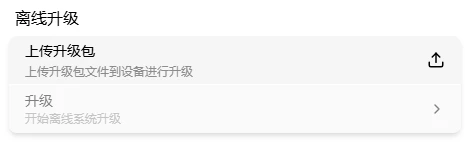
Go to Settings → Upgrade.
Download Firmware Package
Download the OTA image file (.tar format) from either source on your computer:
| Source | URL | Best for |
|---|---|---|
| GitHub | github.com/chutuotek/flexkvm/releases | International users |
| Gitee | gitee.com/chutuotek/flexkvm/releases | Users in China, faster |
| Gitcode | gitcode.com/chutuotek/flexkvm/releases | Users in China, faster |
On the releases page, find the target version and download the .tar firmware package (e.g., flexkvm-v0.1.2.tar).
Upload Image
Go to Settings → Upgrade → click Upload → select the firmware package on the TF card.
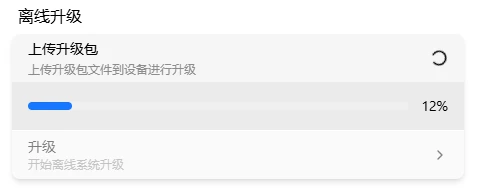
Verify: After upload, verification passes and the upgrade card becomes active (no longer grayed out).
Upgrade
Click Upgrade - a dialog shows the image SHA-256 checksum. Confirm it's correct, then click Upgrade - enter password (with 2FA enabled, also enter verification code):
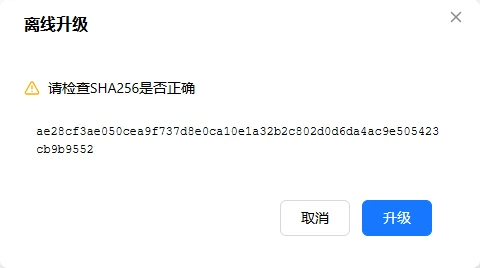

After verification, upgrade begins:
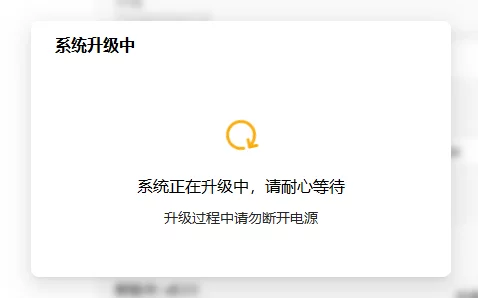
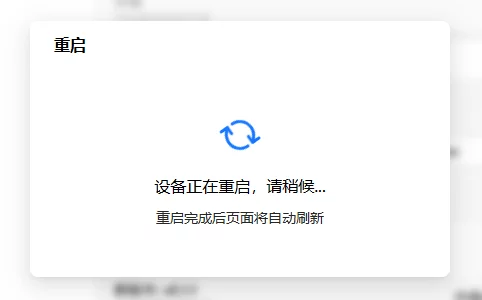
Verify: During upgrade, the OLED shows an upgrade icon and 🔴 Warning LED fast-blinks. When complete, the device auto-reboots and OLED shows the IP again.
Upgrade success:
OTA only upgrades to a higher version — downgrades and same-version overwrites are not supported. ⚠️ Keep power stable during upgrade; power loss may cause upgrade failure.