System Logs
System logs are for vendor troubleshooting of system anomalies. You don't need them for daily use — only when something goes wrong.
Go to Settings → Maintenance.
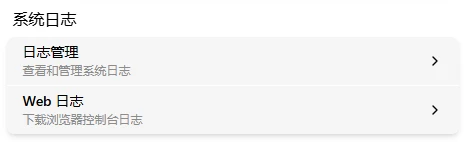
Log Management
Click the "Log Management" card:
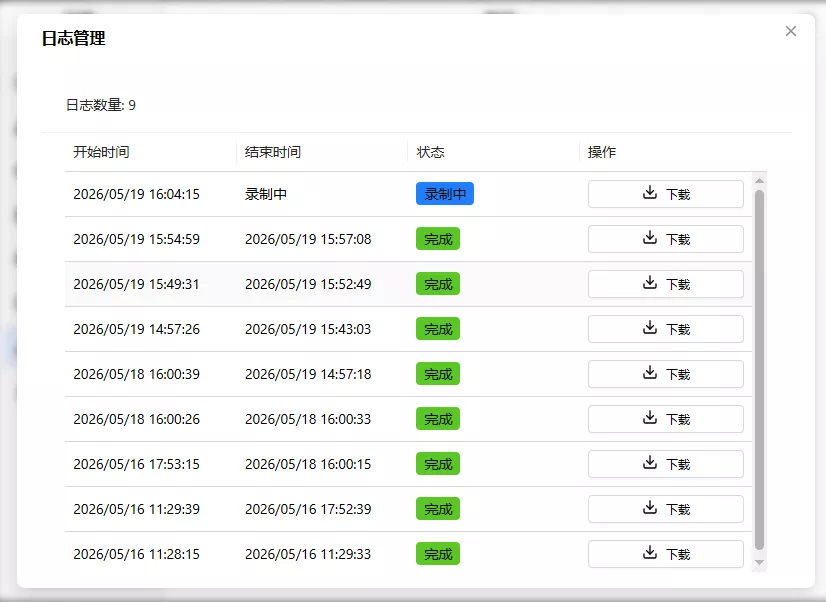
The log list shows each log's start time, end time, status, and download button. Each system startup (reboot, power loss, crash, etc.) generates a new log entry. Maximum 20 entries retained.
Three status types:
- Recording (blue): Currently recording
- Normal (green): Recording complete, no anomalies
- Abnormal (red): Recording complete, system has crashed
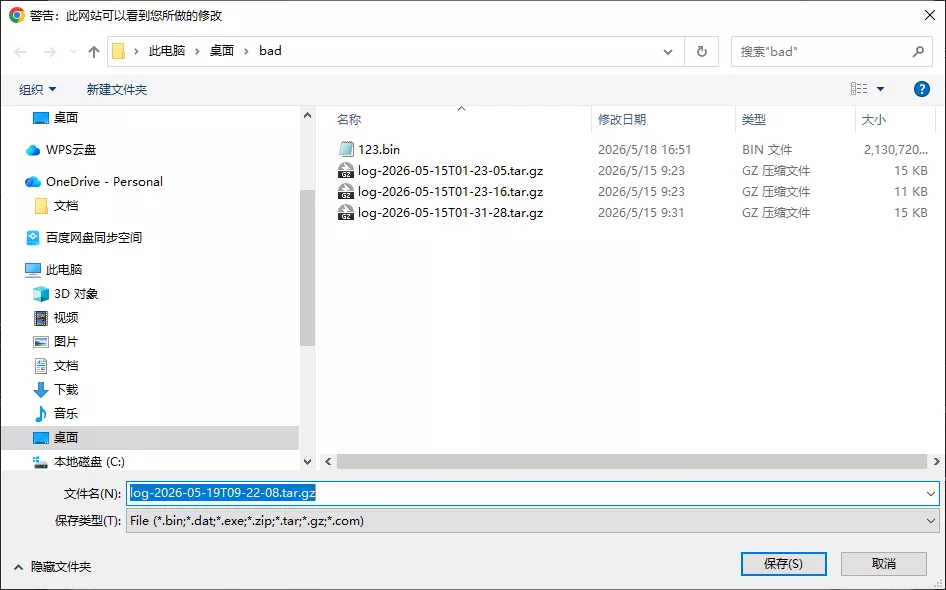
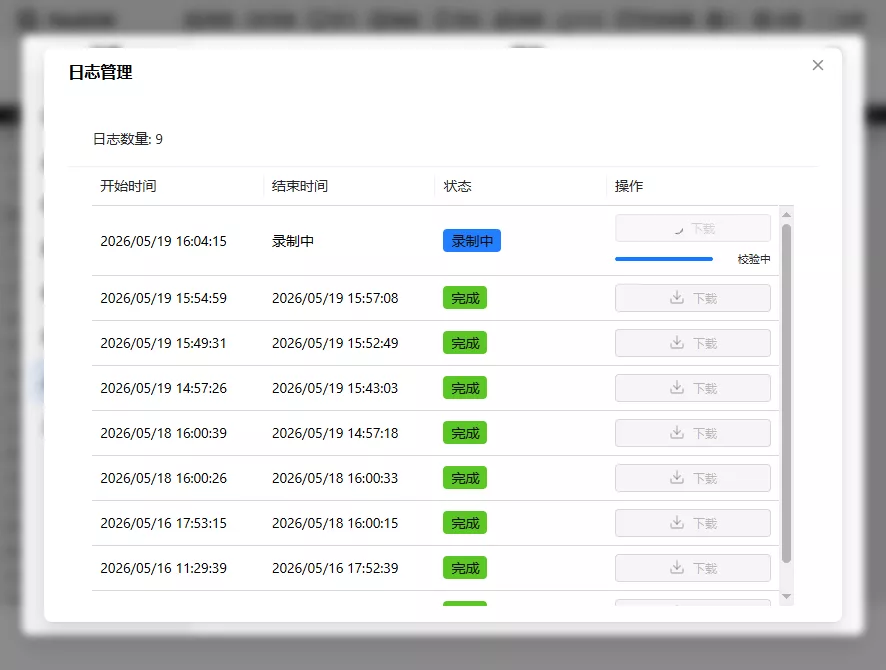
Click download → choose directory → wait for progress bar to reach 100% and verification to pass. Filename: log-YYYY-MM-DDTHH-MM-SS.tar.gz, e.g., log-2026-05-19T09-22-08.tar.gz. If verification fails, re-download.
WEB Logs
Click the "WEB Log" card → the current browser log auto-downloads to your browser's download directory. Filename: flexkvm-web-xxxxxxxxx.log (xxxxxxxxx is a timestamp). Intended for vendor debugging.