OLED Screen
FlexKVM has a 128×64 monochrome OLED display on the front that shows device status, network info, and system version.
After powering on, the OLED cycles through: boot logo → device status screen → auto-sleep (after 60 seconds of inactivity). Press Button A or B to wake. Auto-sleep is disabled in provisioning mode.
OLED Settings
Go to Settings → System → OLED Display Settings.
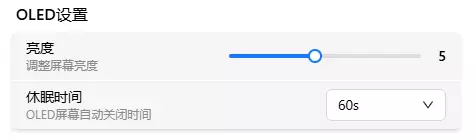
Brightness
Brightness slider (range 1–10), changes take effect instantly.
Sleep Timeout
Time before auto-sleep after inactivity. Options: 10s / 30s / 60s / 120s / 300s / 600s.
OLED Display
Main Screen
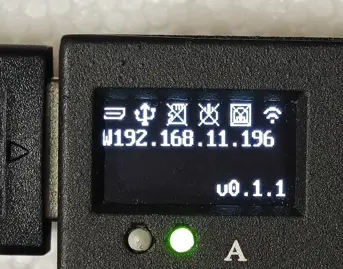
Four lines, three sections:
Status bar (first line): 6 icons, left to right —
| Icon | Meaning |
|---|---|
| HDMI | HDMI connected? |
| USB | USB signal normal? |
| TF card | TF card inserted? |
| ATX | ATX module connected? |
| Ethernet | Wired connection status (normal / Direct Mode — two icons) |
| WiFi | WiFi disconnected / connected / hotspot active (three states) |
Icon normal = connected. Icon with X overlaid = not connected.
IP address (middle two lines): IP prefix indicates interface type and IP assignment method —
| Display | Interface | IP method |
|---|---|---|
| Exxx.xxx.xxx.xxx | Ethernet | DHCP |
| Exxx.xxx.xxx.xxx | Ethernet | Static IP (inverse) |
| Sxxx.xxx.xxx.xxx | Ethernet | Direct Mode (DHCP Server) |
| Wxxx.xxx.xxx.xxx | WiFi | DHCP |
| Wxxx.xxx.xxx.xxx | WiFi | Static IP (inverse) |
| Axxx.xxx.xxx.xxx | AP hotspot | — |
While acquiring an IP address, the display shows E Loading... or W Loading....
E = DHCP, normal display; E = Static IP, inverse display (white on black). Direct Mode shows S.
If the IP hasn't been acquired after 10 seconds, check whether your current network supports dynamic IP assignment.
System version (bottom line): e.g., v0.1.2 or v0.1.3-Beta.1.
Info Sub-pages
On the main screen, short-press Button A to cycle through 7 sub-pages: Home → HDMI Info → System Info → ETH Info → ETH IPv6 → WiFi Info → WiFi IPv6 → AP Info → Home. Short-press Button B to return to the main screen at any time. The screen automatically resets to the main page after sleep.
Sub-pages use a full-screen 4-line layout (no status bar), with content starting from line 1.
HDMI Info
Video input parameters:
| Line | Content |
|---|---|
| Line 1 | HDMI (left) + quality level (right-aligned: LOW / MED / HIGH / ULTRA) |
| Line 2 | Resolution@refresh rate (e.g. 1920x1080@60Hz, --x-- when no signal) |
| Line 3 | Stream state (Streaming / IDLE / OFFLINE) |
| Line 4 | Link status (LINK / No Signal / NOT LINK) |
Stream states: Streaming — user online + HDMI linked, encoder actively streaming; IDLE — HDMI linked but no user connected, encoder on standby; OFFLINE — HDMI not detected or link not established.
 HDMI          HIGH
 1920x1080@60Hz
 Streaming
 LINK
System Info
Device identification:
| Line | Content |
|---|---|
| Line 1 | SYSTEM title |
| Line 2 | Product name (e.g. FlexKVM) |
| Line 3 | Hostname |
| Line 4 | Serial number (SN) |
 SYSTEM
 FlexKVM
 flexkvm
 FS10251810001CN5
ETH Info
Ethernet interface details:
| Line | Content |
|---|---|
| Line 1 | ETH (left) + mode label (right: DHCP / STATIC / DIRECT) |
| Line 2 | IP address (or DISABLE / NOT CONNECT / Loading) |
| Line 3 | MAC address |
| Line 4 | Gateway (prefix G, e.g. G192.168.1.1) |
Mode labels: DHCP (dynamic), STATIC (manual configuration), DIRECT (DHCP Server mode).
 ETH              DHCP
 192.168.1.100
 AA:BB:CC:DD:EE:FF
 G192.168.1.1
ETH IPv6
Ethernet IPv6 address (shows NO IPV6 when absent):
| Line | Content |
|---|---|
| Line 1 | ETH IPV6 title |
| Lines 2–4 | IPv6 address, split across 3 lines (max 16 chars per line) |
 ETH IPV6
 240e:390:8b7
 8:1a3c:1234:56
 78:90ab
WiFi Info
WiFi interface details:
| Line | Content |
|---|---|
| Line 1 | WiFi + signal strength (e.g. WiFi -45) + mode label (right) |
| Line 2 | IP address (or DISABLE / NOT CONNECT / Loading) |
| Line 3 | SSID (prefix S:, e.g. S:MyWiFi) |
| Line 4 | MAC address |
 WiFi -55        STATIC
 10.0.0.55
 S:MyOfficeWiFi
 AA:BB:CC:DD:EE:FF
WiFi IPv6
WiFi IPv6 address (shows NO IPV6 when absent):
| Line | Content |
|---|---|
| Line 1 | WIFI IPV6 title |
| Lines 2–4 | IPv6 address, split across 3 lines (max 16 chars per line) |
 WIFI IPV6
 240e:390:8b7
 8:1a3c:1234:56
 78:90ab
AP Info
Hotspot configuration:
| Line | Content |
|---|---|
| Line 1 | AP + WiFi6 indicator + band (2.4G / 5G) |
| Line 2 | SSID (prefix S:, e.g. S:FlexKVM-AP) |
| Line 3 | Password (prefix P:) |
| Line 4 | IP address (or DISABLE) |
 AP  WIFI6      5G
 S:FlexKVM-AP
 P:12345678
 192.168.10.1
Provisioning Screen
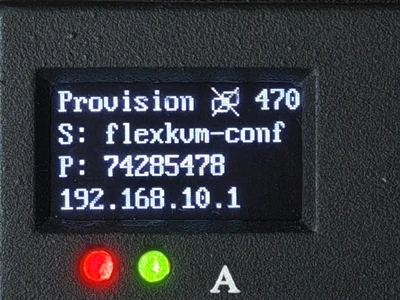
When entering provisioning mode (long-press Button A), the OLED shows the hotspot name, random password, and IP 192.168.10.1. See Provisioning Mode for details.
Factory Reset Screen
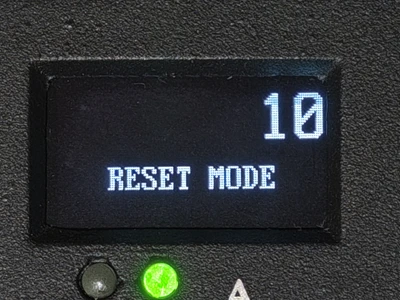
After holding the factory reset button for 1 second, the OLED displays a factory reset countdown. Release the button when the countdown reaches 0 to restore factory settings. See Factory Reset.